
Setup Guide for cocorev
cocorev is a HubSpot-native ecosystem intelligence tool that surfaces partner-sourced pipeline opportunities directly inside your CRM. It connects to your HubSpot portal and analyses your deals, contacts and companies to identify where ecosystem relationships can help you win more.
With cocorev, your sales team can:
- See which accounts have shared partner connections and act on them from the HubSpot company record
- Get AI-generated Ecosystem Signals that surface high-intent leads based on partner and ecosystem data
- Run Ecosystem Playbooks that identify winnable deals across four play types: expand customers, accelerate deals, generate pipeline and build partnerships
- Sync qualified leads from Ecosystem Signals directly into your HubSpot CRM
Get set up in under 10 minutes.
Install the App
Step 1: Create Your cocorev Account
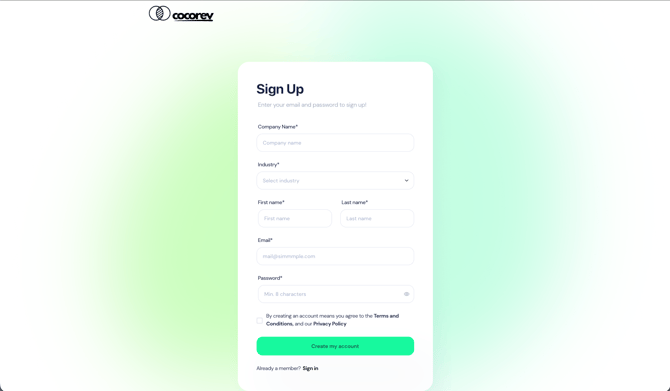
- Go to app.cocorev.com/auth/sign-up
- Enter your Company Name
- Select your Industry from the dropdown
- Enter your First name and Last name
- Enter your Email and choose a Password (minimum 8 characters)
- Check the box to agree to the Terms and Conditions and Privacy Policy
- Click Create my account
Step 2: Connect Your HubSpot Portal
This is what powers cocorev's intelligence. Connecting HubSpot lets cocorev analyse your deals and surface ecosystem signals.
After signing up, you will land on the Home page. You will see a yellow banner at the top: "Portal not connected. Some features will be unavailable until you connect your portal."
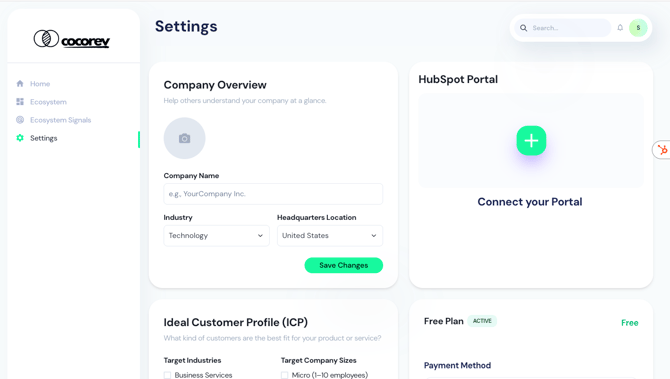
- Click Settings in the left navigation
- On the Settings page, find the HubSpot Portal card on the right side
- Click the green + button under Connect your Portal
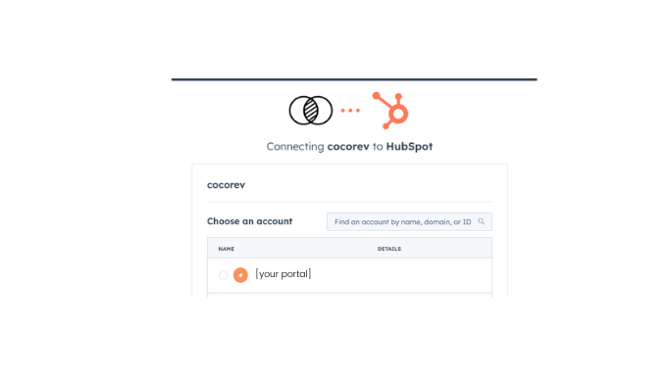
- You will be redirected to HubSpot. If you have multiple HubSpot accounts, select the one you want to connect and click Choose Account
- Review the requested permissions. cocorev requests access to:
- View and manage contact lists
- View and manage companies and company properties
- View and manage contacts and contact properties
- View and manage deals
- View users assigned to CRM records
- Read User CRM object data
- View basic HubSpot account information (primary domain and user emails)
- Check the acknowledgement box at the bottom of the page
- Click Connect app
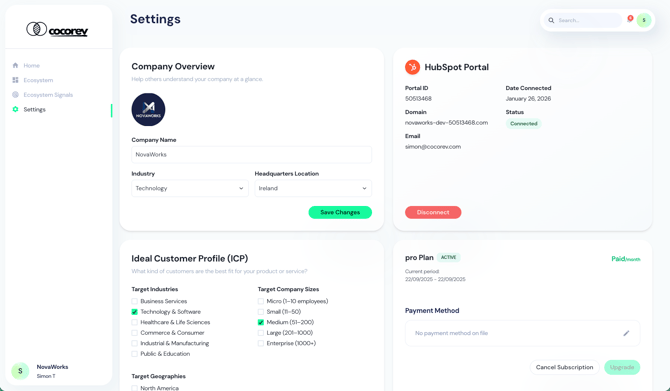
- You will be redirected back to cocorev Settings. The HubSpot Portal card will now show your Portal ID, Date Connected, Domain, Status (Connected) and the Email used to connect.
Don't Have Permission to Install Apps?
Installing HubSpot apps typically requires Super Admin access. If you cannot complete this step, send this to your HubSpot admin:
Hi, I'm setting up cocorev to help us surface ecosystem intelligence on our deals. To complete the setup, I need the cocorev app installed from the HubSpot Marketplace. Could you install it or grant me App Marketplace Access? Here's the app: [link to cocorev in HubSpot Marketplace]
Configure the App
Complete Your Company Profile
Help cocorev understand who you are at a glance.
- In Settings, find the Company Overview card on the left side
- Click the camera icon to upload your company logo
- Confirm your Company Name
- Select your Industry from the dropdown
- Choose your Headquarters Location
- Click Save Changes
This takes about 1 minute and improves your partner match quality.
Define Your Ideal Customer Profile (ICP)
Your ICP helps cocorev identify the best opportunities for you.
- In Settings, scroll down to the Ideal Customer Profile (ICP) card
- Under Target Industries, check the industries that match your customers (e.g. Technology, Business Services)
- Under Target Company Sizes, check the sizes you sell to (e.g. 11-50, 51-200)
- Save your changes
Be specific here. The tighter your ICP, the better your signals.
Find and Invite Your First Partner
- Click Ecosystem in the left navigation
- You will see the Current Partners table (empty at first) and the Add New Partner search box on the right
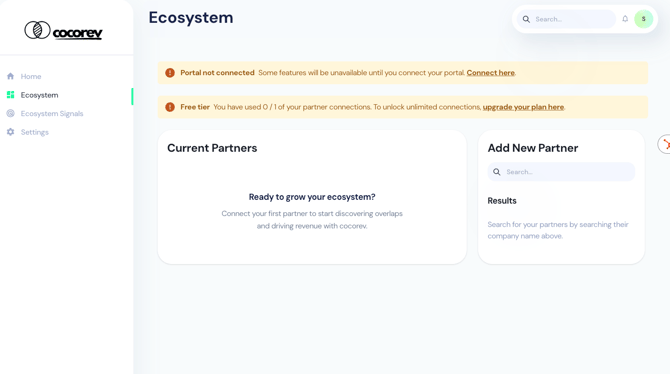
Option A: Find partners already on cocorev
- In the Add New Partner search box, type a company name
- If they are in the cocorev network, you will see them in the Results with "Company exists in cocorev network"
- Click Request
- They will appear in your Current Partners table with a purple Requested status badge
Option B: Invite a partner who is not on cocorev yet
If your partner is not in the network, you can invite them via email. They will get an invitation to join and connect with you.
Not sure who to connect with? Read: How to Choose Your First Partner
Accept a Partner Connection
When a partner sends you a connection request, you will see a notification on your Home page: "New Partner Request: [Name] sent you a partner invitation."
- Go to Ecosystem in the left navigation
- You will see the requesting company in your Current Partners table with a yellow Pending status badge
- Click the checkmark icon in the Actions column to accept (or the X to decline)
- Once accepted, the status changes to a green Connected badge with the partnership date
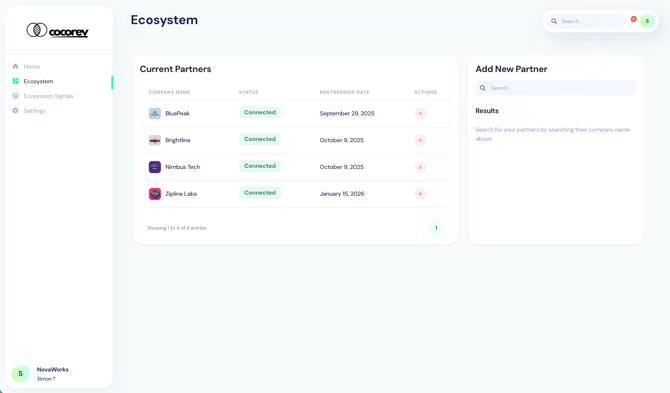
When you have at least one connected partner, you unlock the full Ecosystem Playbooks.
Add the cocorev Card to HubSpot Company Records
Make sure the cocorev Partner Summary card is visible on your company records. This is where you will see partner connections and recommended plays for each account.
Option A: From Connected Apps (Super Admins)
- In HubSpot, click the Settings icon (gear) in the top navigation
- In the left sidebar, go to Account Management > Integrations > Connected apps
- Click cocorev
- Click the App cards tab
- On the cocorev card, click Manage locations
- Select the checkbox for Companies
- Click Save
Option B: From Record Customisation
- In HubSpot, click the Settings icon (gear) in the top navigation
- In the left sidebar, go to Data Management > Objects > Companies
- Click the Record Customisation tab
- Click Default view
- In the right sidebar section, click Add card
- Find the cocorev card and add it
- Click Save and exit
Once added, you will see the cocorev Partner Summary card in the right sidebar of every company record.

For Sales Teams: Individual Reps May Need to Add the Card
If a rep has previously customised their HubSpot record layout, the cocorev card may not appear automatically. They will need to add it to their personal view:
- Open any company record in HubSpot
- In the right sidebar, click Customise cards
- Find the cocorev card and add it
- Click Save
Use the App
The cocorev Partner Summary Card
When you open a company record in HubSpot, the cocorev Partner Summary card in the right sidebar shows:
- Top Partner: which partner has the strongest relationship with this account
- Stage: where the account sits in your pipeline (e.g. Opportunity, Customer)
- Play: which ecosystem play is recommended (e.g. Accelerate Ops, Expansion / Upsell Play)
- Owner: the partner contact who owns the relationship, with their email
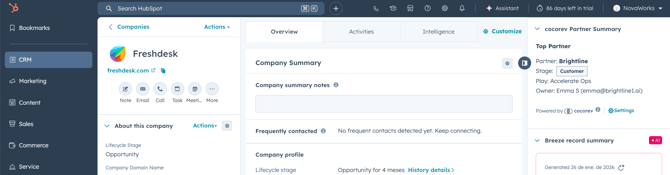
This gives your reps instant context before every call or email.
Ecosystem Playbooks
Go to Home to see your four Ecosystem Playbooks:
- Upsells & Expansion: Unlock revenue by expanding or upselling into new teams, departments or geographies within your existing accounts.
- Accelerate Opportunities: Leverage your partner and their existing knowledge and relationships to speed up the sales cycle.
- Generate Opportunities: Prioritise high-intent leads who have demonstrated buying behaviour with your partner's solutions.
- Build Partnerships: Strengthen your partnership through proactive support of their expansion, deal acceleration and opportunity generation efforts.
Click View customers on any playbook to open the corresponding HubSpot segment. This takes you directly into HubSpot where you will see a filtered list of companies that match the play criteria, based on their lifecycle stage and partner connection properties.
Ecosystem Signals (AI-Generated Leads)
You do not need a connected partner to start getting value from Ecosystem Signals. Click Ecosystem Signals in the left navigation.
The AI agent analyses your ICP and ecosystem data to surface qualified leads. When it completes, you will see a table of up to 10 companies with:
- Company: name of the lead
- Industry: what they do
- Size: employee count range
- Location: where they are based
- Intent Strength: HIGH or MEDIUM
- Confidence: a percentage score
- Actions: View details (pencil icon) and Sync to HubSpot CRM (sync icon)
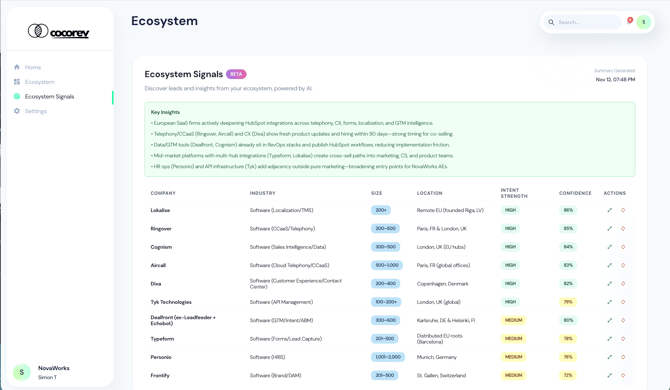
For each signal, you can:
- Click the pencil icon to view the full details and reasoning behind the signal
- Click the sync icon to push the lead directly into your HubSpot CRM as a company record
Your Ecosystem Metrics
The Home page shows your Ecosystem Metrics at a glance:
- Opportunity Value (cocoOps): the total pipeline value of deals with ecosystem connections
- Active Partners: the number of connected partners in your network
Click Refresh Data to update the metrics or Go to Ecosystem to manage your partner connections.
Disconnect the App
If you need to disconnect your HubSpot account from cocorev:
- Log in to cocorev at app.cocorev.com
- Click Settings in the left navigation
- In the HubSpot Portal card, click the red Disconnect button
- Confirm the disconnection
What happens when you disconnect:
- cocorev will no longer be able to read your HubSpot data or surface new ecosystem signals
- Existing data in your cocorev account (partner connections, signal history) will remain intact
- The cocorev Partner Summary card on your HubSpot company records will stop displaying data
- No data will be deleted from your HubSpot account. Your contacts, companies and deals are not affected.
- You can reconnect at any time by following the installation steps above
Uninstall the App
To fully uninstall cocorev from your HubSpot account:
- In HubSpot, click the Settings icon (gear) in the top navigation
- In the left sidebar, go to Account Management > Integrations > Connected apps
- Find cocorev in the list
- Click Actions > Uninstall
- Confirm the uninstall
For detailed instructions, see HubSpot's guide to uninstalling apps.
What happens when you uninstall:
- cocorev will lose all access to your HubSpot portal
- The cocorev Partner Summary card will be removed from your HubSpot company records
- No data will be deleted from your HubSpot account. Your contacts, companies and deals are not affected.
- Your cocorev account and partner connections will remain active. You can reconnect a HubSpot portal at any time from cocorev Settings.
Need Help?
You can watch the full walkthrough (very boring) video here: Connecting cocorev to HubSpot
Contact us at support@cocorev.com or reach out to your cocorev contact directly.